ITS works without email: notifications arrive in the bell. With email on, they also arrive in a daily summary, and I forgot my password starts working.
How do I turn sending on?
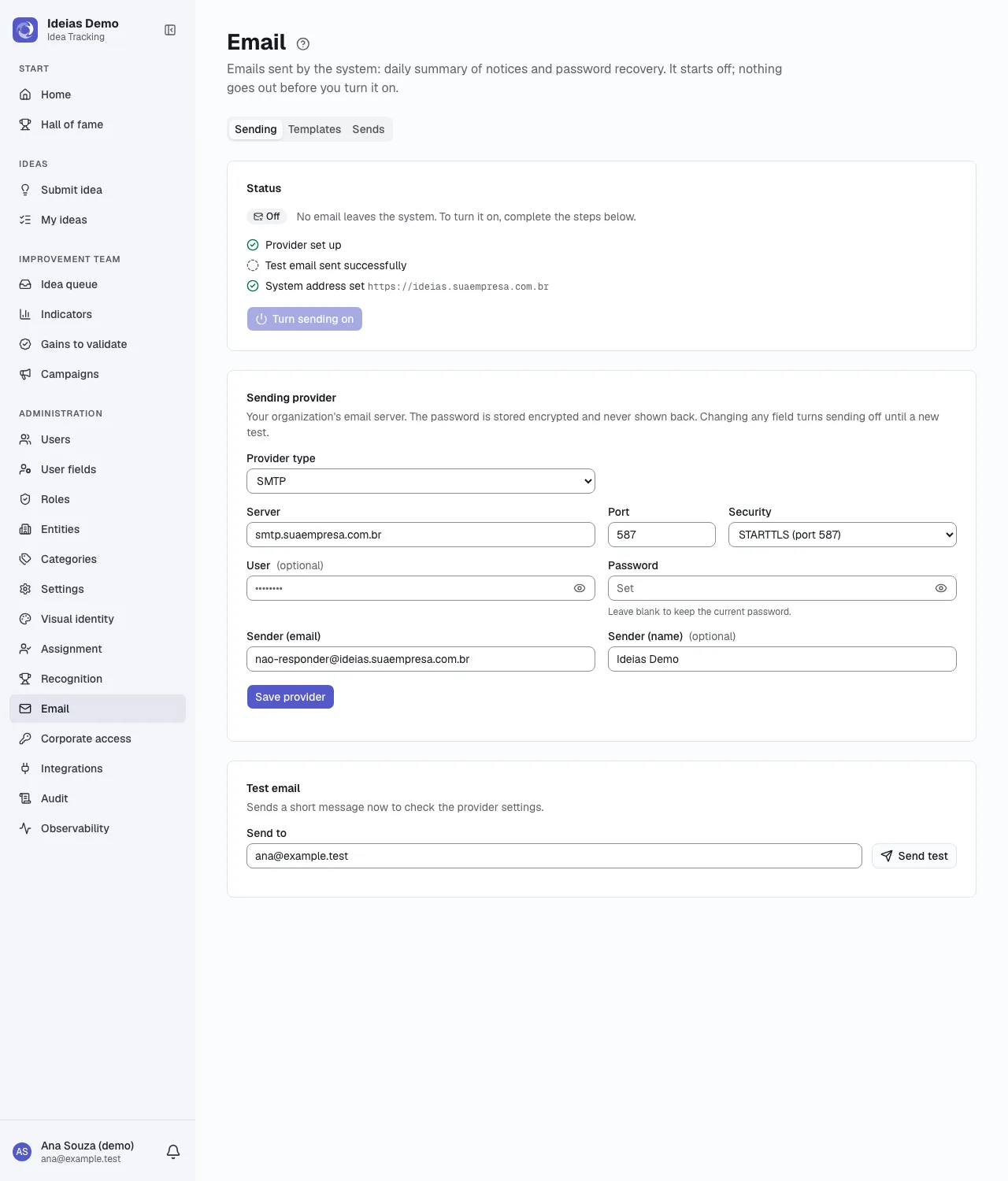
- In Settings > Notifications and email, fill in the System address: the address people use to open ITS, such as
https://ideas.yourcompany.com. It goes into the links in emails. - In Email > Sending, choose the Provider type and fill in the details of the organization's SMTP server, Microsoft 365 (Graph) or Google Workspace (Gmail). The password, secret or key is stored encrypted and never shown back.
- Click Send test and check the inbox.
- Once the test works, click Turn sending on.
The fields that identify your organization (tenant, client, sender mailbox, SMTP user) open hidden: click the eye to see them.
How do I send through Microsoft 365?
With the Microsoft 365 (Graph) type, ITS sends through an application registered at Microsoft, without a person's username and password. You enter the tenant, the client ID, the secret, the Sender mailbox (email) and, if you want, Reply to. Creating the application and releasing the mailbox in Exchange is IT's job: see Sending email through Microsoft.
Also enter the Secret expiry date: health warns 30 days before it expires, and at 7 days it raises an alert. When you replace the secret, enter the new expiry date.
How do I send through Google Workspace?
With the Google Workspace (Gmail) type, ITS sends through a Google service account, without a person's username and password. You paste the Service account JSON key from the file downloaded from Google Cloud, enter the Sender mailbox (email) (a Workspace user) and, if you want, Sender (name) and Reply to. Once saved, the screen shows only the service account's email; the key never comes back. Creating the account and authorizing sending in the Admin Console is IT's job: see Sending email through Google.
The Key expiry date is optional, because service account keys don't expire by default. If you enter a date, health warns 30 days before.
How does the daily summary work?
So nobody gets an email for every event, notifications go out in a daily summary, at the configured time. Each person chooses in My account what they want to receive.
Can I change the text of the emails?
Yes. In Email > Templates, edit the text of each email in each language: the daily summary, the password link, the test email and the three for approval from another area (request, reminder and code). Without edits, the factory text applies.
The template's variables, such as {{link}} or {{items}}, sit below the text as pieces. Drag one to the spot in the text where it should go, or click it (or press Enter) to insert it at the cursor. The template stays plain text, with the same validation: dragging only writes the variable.
What happens when a send fails?
ITS retries a few times. If it still fails, the failure shows up in Email > Sends, with the reason and a Try again button.