Sending email through Microsoft
This page is for whoever installs ITS and looks after your organization's Microsoft 365. Whoever administers ITS uses the Email screen; this page covers what must exist before it.
ITS sends through Microsoft Graph, with an application registered at Microsoft, without a person's username and password. It's the recommended way today, because Microsoft has been turning off basic authentication for Exchange Online SMTP (check the current date for your tenant). SMTP is still available if you use another server, and Google Workspace has its own page: Sending email through Google.
What do I need to prepare first?
| Item | Why |
|---|---|
| An Exchange Online mailbox | ITS sends through it. A shared mailbox (for example no-reply@yourdomain.com) is enough and uses no license |
| SPF, DKIM and DMARC for the mailbox's domain | So emails don't land in spam. Ideally, use a subdomain only for ITS notifications |
APP_SECRET_KEY in .env | The client secret is stored encrypted with it. If the key changes, register the secret again |
| Outbound network access from the API server and the worker | To login.microsoftonline.com and graph.microsoft.com, on port 443. Behind a proxy, the same variables as for corporate sign-in apply |
1. How do I register the application in Entra?
- In the Microsoft Entra admin center, open Applications > App registrations > New registration.
- Name:
ITS email. Under Supported account types, choose Accounts in this organizational directory only (single tenant). - Don't enter a redirect URI: sending involves no person signing in.
- Under Overview, copy the Application (client) ID and the Directory (tenant) ID.
- Under API permissions, add nothing (not even
Mail.Send). If a Graph permission has already been granted, remove it. Exchange is what allows sending (step 4), and only for one mailbox.
2. How do I create the secret?
Under Certificates & secrets > New client secret, choose the expiry (Microsoft allows up to 24 months) and copy the Value right away, not the secret ID. It's shown only once.
3. Which mailbox sends the emails?
Create the shared mailbox in Exchange (for example no-reply@yourdomain.com) and note the address. If you prefer, the mailbox object ID also works instead of the address (the field is optional in ITS).
Emails ITS sends through Graph aren't kept in that mailbox's sent items folder.
4. How do I allow the application to use only that mailbox?
Exchange's RBAC for Applications is what enforces this restriction. In Exchange Online PowerShell, as an administrator:
Connect-ExchangeOnline

# 1. Registers the application in Exchange (a pointer to the Entra application)
New-ServicePrincipal -AppId <application ID> -ObjectId <enterprise application object ID> -DisplayName "ITS email"

# 2. A scope with only the ITS mailbox
New-ManagementScope -Name "ITS-mailbox" -RecipientRestrictionFilter "PrimarySmtpAddress -eq 'no-reply@yourdomain.com'"

# 3. The sending role, restricted to that scope
New-ManagementRoleAssignment -App <enterprise application object ID> -Role "Application Mail.Send" -CustomResourceScope "ITS-mailbox"

# 4. Check: it should say the application can send through this mailbox (and no other)
Test-ServicePrincipalAuthorization -Identity <application ID> -Resource no-reply@yourdomain.com
The enterprise application object ID is under Enterprise applications > ITS email > Overview and isn't the same as the application ID. Command and parameter names may change: check Microsoft's current documentation ("RBAC for Applications in Exchange Online"). The change can take a few minutes to take effect.
5. How do I register it in ITS?
Under Administration > Email > Sending, choose Microsoft 365 (Graph) in Provider type and fill in:
| Field in ITS | Where it comes from |
|---|---|
| Tenant (directory) ID | Directory ID (step 1) |
| Client (application) ID | Application ID (step 1) |
| Client secret | The secret's Value (step 2) |
| Secret expiry date | The expiry date you chose (step 2) |
| Sender mailbox (email) | The mailbox address (step 3) |
| Mailbox object ID | Optional |
| Reply to | Optional: where replies go |
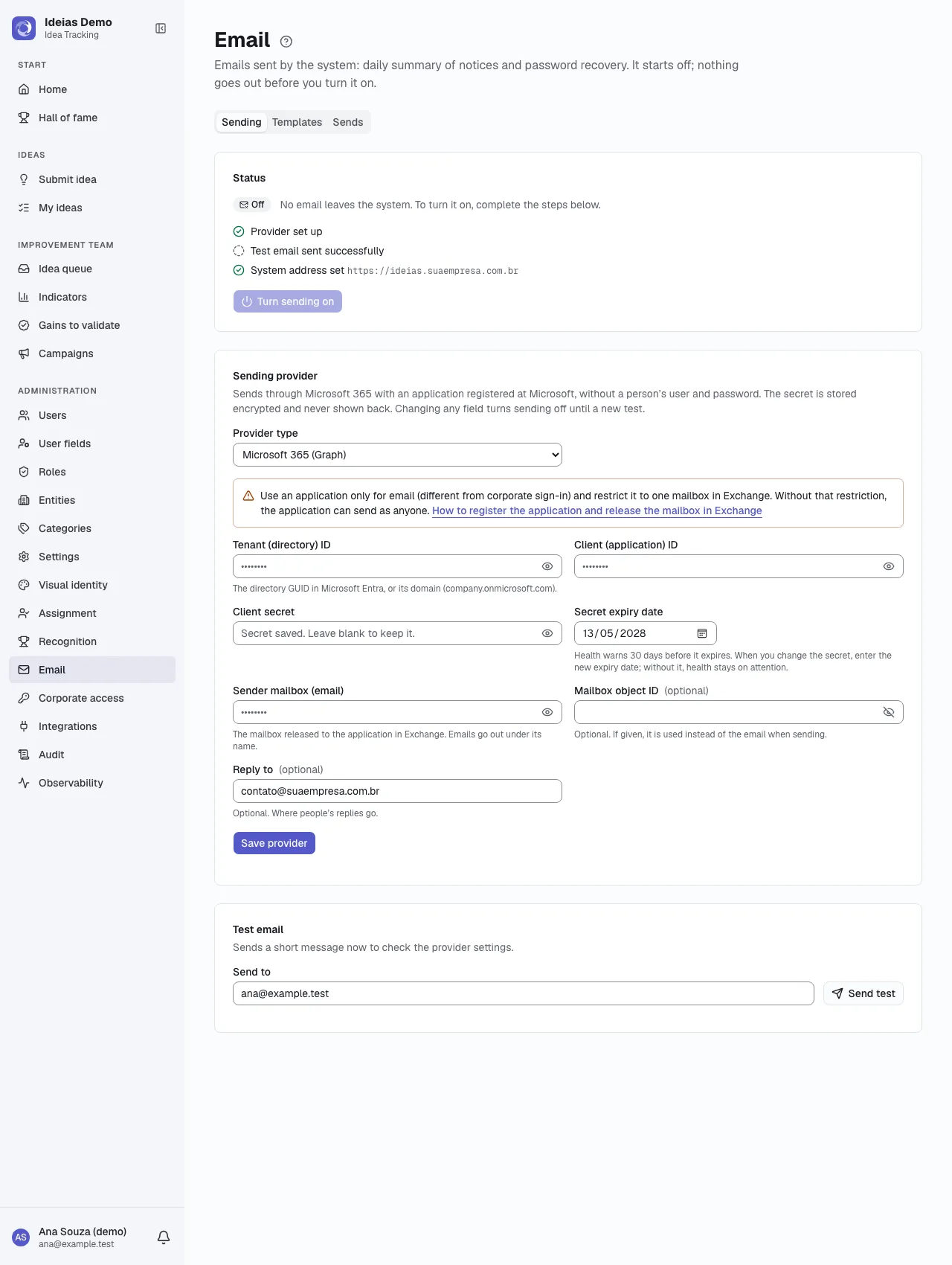
Then click Send test, check the inbox and click Turn sending on.
How do I track the secret expiry date?
ITS shows the expiry date of the email secret, and also of the corporate sign-in secret, as health items: Email secret and Corporate sign-in secret.
| Situation | Health state |
|---|---|
| No expiry date entered | Attention |
| Expires in 30 days or less | Attention |
| Expires in 7 days or less, or already expired | Failed (raises an alert in the bell and by email, while sending still works) |
To replace the secret:
- Create a new secret in Entra (step 2).
- In ITS, register the new Value and the new Secret expiry date.
- Click Send test and, once the test works, Turn sending on.
If you replace the secret without entering the new expiry date, ITS erases the old date, and health stays on attention until you enter the new one.
What do I do when sending fails?
The reason appears in the test result and in Email > Sends, with only the error code.
| Message | What to check |
|---|---|
| "Microsoft refused the application credentials (HTTP 401: invalid_client)" | The registered secret is the secret ID instead of the Value, or the secret has expired. Create another one and register the Value |
| "HTTP 403: ErrorAccessDenied" | The application doesn't have Exchange RBAC for that mailbox (step 4), the mailbox is outside the scope or the change hasn't taken effect yet |
"HTTP 404" (for example ErrorInvalidUser) | The mailbox doesn't exist or isn't an Exchange Online mailbox. Check the address and the object ID |
| "HTTP 429" or "HTTP 503" | Rate limit or a temporary outage: ITS retries on its own. If it continues, wait or reduce the volume |
| "Could not reach Microsoft" | Outbound network access to login.microsoftonline.com and graph.microsoft.com (firewall and proxy) |
| Emails land in spam | SPF, DKIM and DMARC for the mailbox's domain. Prefer a subdomain only for notifications |
ITS doesn't retry when the credential is refused, when a permission is missing or when the mailbox doesn't exist: the email fails right away, with the reason. On rate limits and outages, it retries with increasing waits.