Sending email through Google
This page is for whoever installs ITS and looks after your organization's Google Workspace. Whoever administers ITS uses the Email screen; this page covers what must exist before it.
ITS sends through the Gmail API, with a service account and domain-wide delegation, without a person's username and password. It only works with Google Workspace (your organization's domain), not with personal @gmail.com accounts.
What do I need to prepare first?
| Item | Why |
|---|---|
| A Workspace user to send from | ITS sends on their behalf, for example no-reply@yourdomain.com. It must be a user with Gmail active (groups don't work) |
| SPF, DKIM and DMARC for the domain | So emails don't land in spam. Google handles the domain's DKIM through the Admin Console |
APP_SECRET_KEY in .env | The service account key is stored encrypted with it. If the key changes, register the file again |
| Outbound network access from the API server and the worker | To oauth2.googleapis.com and gmail.googleapis.com, on port 443. Behind a proxy, the same variables as for corporate sign-in apply |
1. How do I create the project and turn on the Gmail API?
- In the Google Cloud Console, create a project only for ITS (for example
its-email). - Under APIs & Services > Library, search for Gmail API and click Enable.
2. How do I create the service account and the key?
- Open IAM & Admin > Service Accounts > Create service account. Name:
its-email. Don't grant any project role. - Open the account you created. Under Keys > Add key > Create new key, choose JSON. The file downloads only once.
- Under Details, copy the Unique ID (a long number). It's the client ID in the next step.
3. How do I authorize sending in Workspace?
In the Admin Console (admin.google.com), as a super administrator, authorize domain-wide delegation:
- Open Security > Access and data control > API controls > Manage Domain Wide Delegation.
- Click Add new and enter the client ID (the Unique ID, step 2) and a single scope:
https://www.googleapis.com/auth/gmail.send
- Save. The change can take a few minutes (sometimes a few hours) to take effect.
Menu and policy names may change: check Google's current documentation ("Domain-wide delegation" and "Gmail API").
4. How do I register it in ITS?
Under Administration > Email > Sending, choose Google Workspace (Gmail) in Provider type and fill in:
| Field in ITS | Where it comes from |
|---|---|
| Service account JSON key | The contents of the downloaded file (paste it, or use Choose the .json file) |
| Sender mailbox (email) | The Workspace user you set aside earlier |
| Sender (name) | Optional: the name shown on the emails |
| Reply to | Optional: where replies go |
| Key expiry date | Optional (see step 2) |
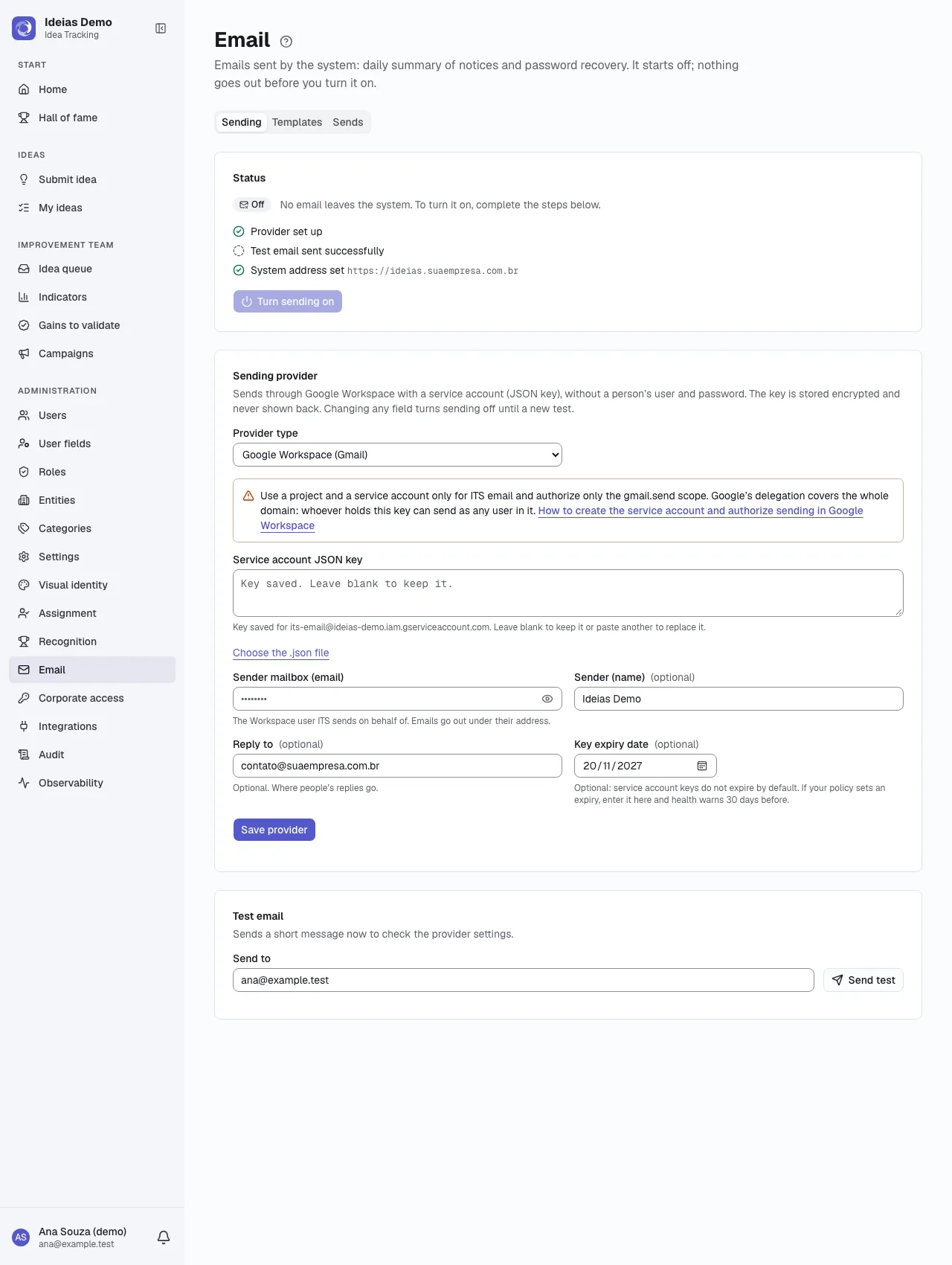
Then click Send test, check the inbox and click Turn sending on. Once the provider is saved, ITS shows only the service account email; the key never comes back to the screen.
How do I replace the key?
- Create a new key on the service account (step 2).
- Paste the new file in ITS and enter the new Key expiry date, if you use one.
- Click Send test and then Turn sending on again.
- Delete the old key in Google Cloud.
If you replace the key without entering the expiry date, ITS erases the old date.
What do I do when sending fails?
The reason appears in the test result and in Email > Sends, with only the error code.
| Message | What to check |
|---|---|
"Google refused the service account credentials (HTTP 400: unauthorized_client)" | Delegation wasn't authorized in the Admin Console, the client ID is wrong or the scope isn't exactly gmail.send (step 3). Wait a few minutes after saving |
"HTTP 400: invalid_grant" | The sender mailbox doesn't exist in the domain, doesn't have Gmail active or the ITS server clock is off (the signature is valid for only a few minutes) |
"HTTP 403: PERMISSION_DENIED" | The Gmail API isn't enabled in the project (step 1) or the service account isn't from that project |
| "HTTP 404" | Mailbox or service not found. Check the address |
| "HTTP 429" or "HTTP 503" | Rate limit or a temporary outage: ITS retries on its own. Workspace limits sending per user per day (around 2,000 messages: check your plan's limit) |
| "Could not reach Google" | Outbound network access to oauth2.googleapis.com and gmail.googleapis.com (firewall and proxy) |
| Emails land in spam | SPF, DKIM and DMARC for the domain. Prefer a subdomain only for notifications |
ITS doesn't retry when delegation wasn't authorized, when a permission is missing or when the mailbox doesn't exist: the email fails right away, with the reason. On rate limits and outages, it retries with increasing waits.
Can I use SMTP with an app password?
Yes. If your organization doesn't want a service account, the SMTP type also works with Gmail. You need a Workspace user with 2-Step Verification and an app password. On the screen, fill in:
- Server:
smtp.gmail.com - Port:
587 - Security: STARTTLS (port 587)
- User: the full address
- Password: the app password
The service account is still the recommended way, because an app password belongs to a person: it stops working if that person leaves or changes the account password, and the administrator can turn this feature off in the Admin Console. See the Email screen.