Corporate access: setting up
By default, people sign in to ITS with email and password. With corporate access (SSO, or "single sign-on"), they can also sign in with their company Microsoft or Google account, without creating another password. The provider confirms who the person is, and ITS only receives the confirmation.
The screen is in Administration > Corporate access and only shows for people with the Configure corporate access permission (out of the box, the Administrator). This page covers turning the feature on; day-to-day use has its own page.
What do I need before I start?
Your organization's IT registers the application with Microsoft (Entra), Google or both and gives you the Client (application) ID, the Client secret and, for Microsoft, the ID of the tenant. IT's steps are in Corporate sign-in.
Also check the System address in Settings > Notifications and email: it must be filled in and start with https://.
Which emails does ITS accept?
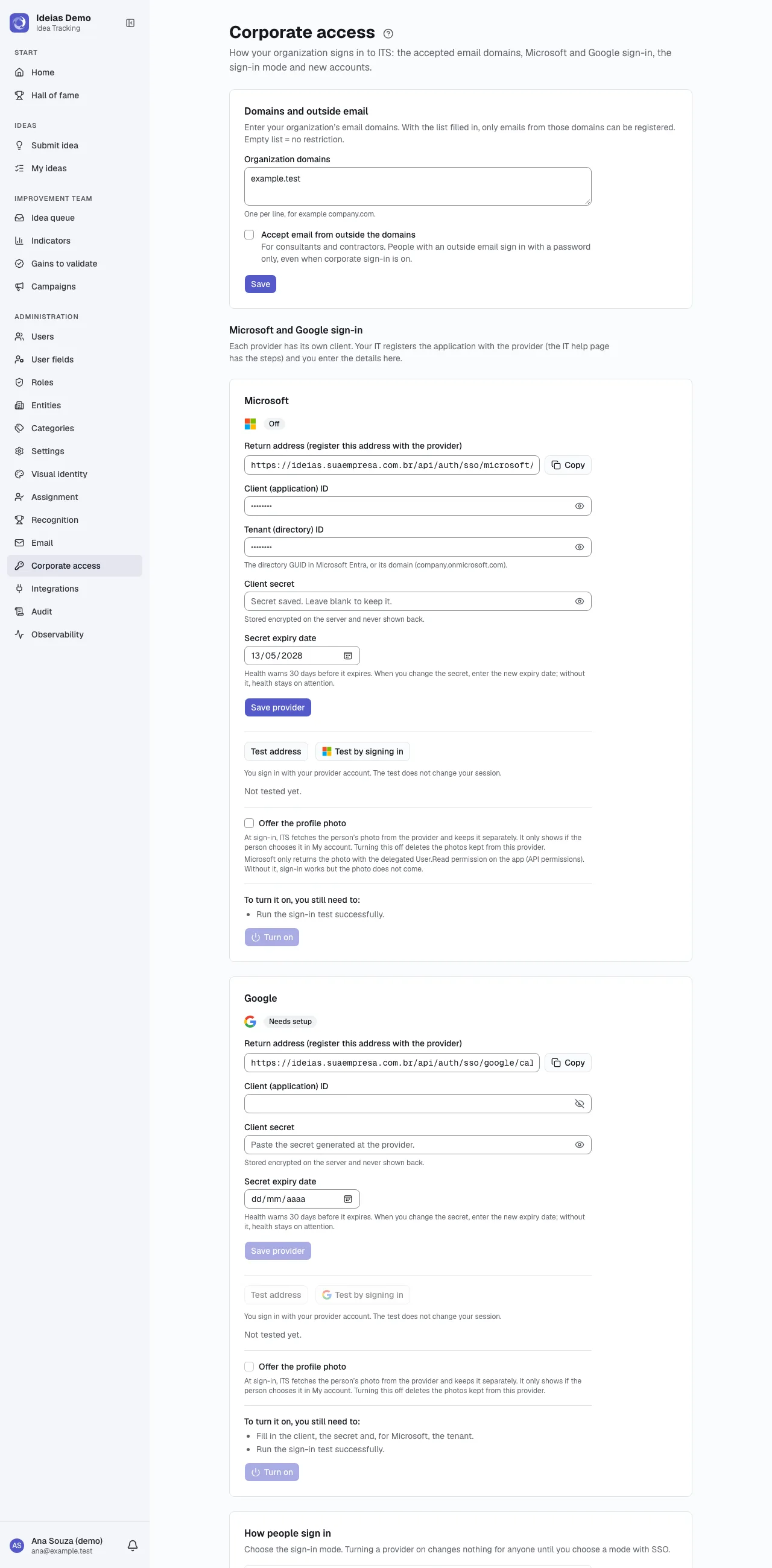
In Domains and outside email, enter the organization's domains, one per line (for example company.com). With the list filled in, only emails from those domains can be registered, or changed to. With the list empty there's no restriction, and nothing changes for people who already use ITS. Corporate sign-in needs at least one domain.
- Accept email from outside the domains is for consultants and contractors. People with an outside email sign in with a password only, even with corporate sign-in turned on.
- People who already had an outside email keep signing in, and the screen lists them.
How do I register a provider?
For each provider, fill in the client, the secret and, for Microsoft, the tenant, then click Save provider. The secret is stored encrypted on the server and never shown back. The screen also shows the return address, which IT registers with the provider.
Then:
- Test address checks only the network and the provider's address.
- Test by signing in opens the provider's sign-in with your account. If that account's email is yours, it gets linked to your user. The test doesn't change your session.
- Once the test passes, click Turn on.
Changing the client, the secret or the tenant turns the provider off and asks for a new test. The Client (application) ID and the Tenant (directory) ID open hidden: click the eye to see them.
Can ITS use the photo from the corporate account?
Yes, if you turn on Offer the profile photo for the provider (it comes turned off). ITS fetches the photo at sign-in and keeps it separately, and it only shows if the person chooses it in My account. Turning it off deletes the photos kept from that provider. On Microsoft, the application needs one more permission, which IT adds: see Corporate sign-in.
Which sign-in mode should I choose?
| Mode | What changes |
|---|---|
| Password only (default) | Everyone signs in with email and password |
| Password and SSO | People who prefer can sign in with the corporate account; the password keeps working |
| SSO only | People with an organization email sign in only through the corporate account |
In SSO only, administrators keep the password as emergency access, in case the provider goes down or is misconfigured. People with an email outside the domains also keep their password. To choose SSO only, your own account must be linked: run the test with your email.
Who gets an account at their first sign-in?
With automatic creation off (the default), only people you registered under Users can sign in. Anyone who isn't registered sees a message asking them to contact the administrator.
In large organizations, you can turn on Create the account on first sign-in. Then anyone who passes all the corporate sign-in rules gets an account at their first sign-in, without a password, with the Starting role and Starting entity you choose.
The provider is what limits who reaches ITS: IT restricts the application to a group on Microsoft, or to an organizational unit on Google (see Corporate sign-in). Without that, anyone in the domain gets an account.
What comes after turning it on?
Read Corporate access: day to day: how a person is recognized, what to do when someone can't sign in and how to end the access of someone who leaves the company.