Users, roles and scope
In ITS, nobody has access to everything by default. Each person gets a role (what they can do) in one or more entities (where they can do it). Once that's clear, almost every "why can't so-and-so see that idea?" question goes away.
How do I create a user?
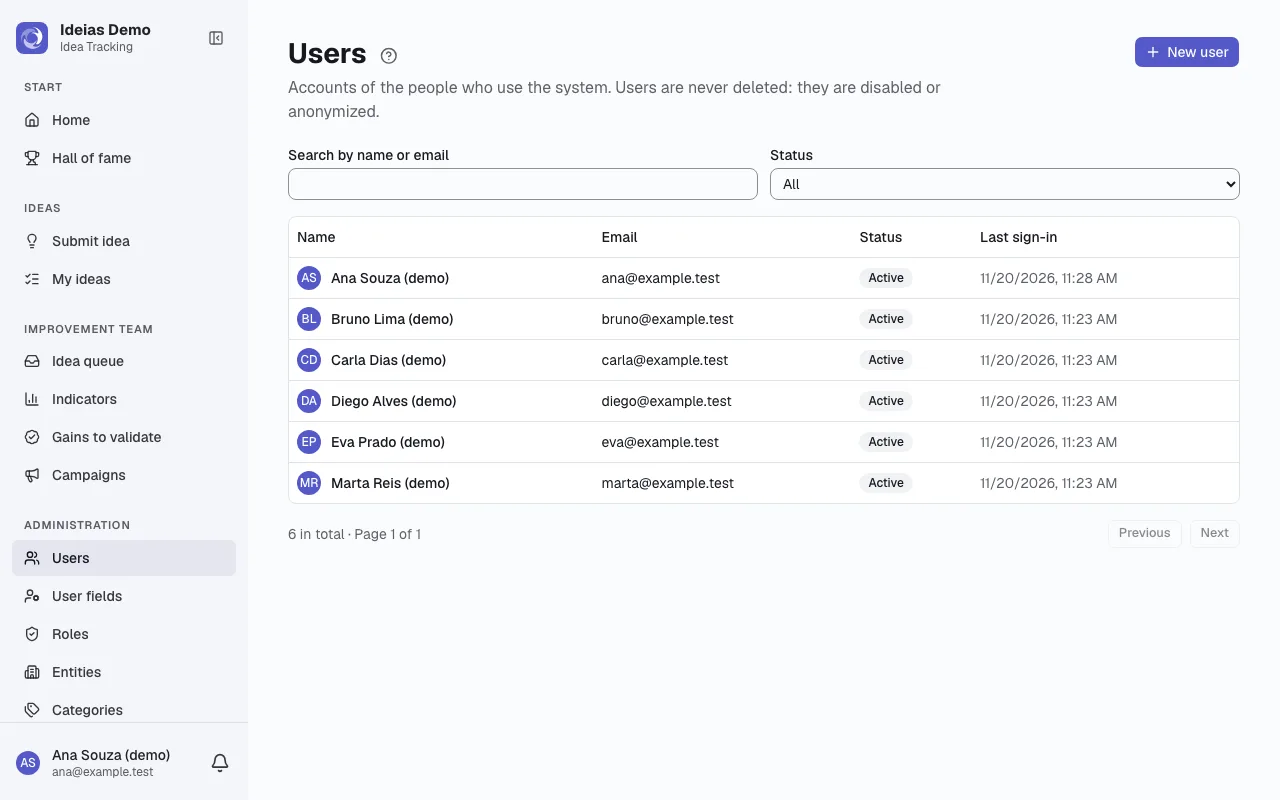
In Users, click New user and enter the name and email. ITS shows a Link to set the password: hand that link to the person. Sign-in is by email and password, with your organization's password policy and a temporary lock after failed attempts.
If your organization uses Microsoft or Google sign-in, see Corporate access and, for the routine, Corporate access: day to day. In SSO only mode, registering a person doesn't create a password link, and on the person's page you see the linked accounts.
What is a role?
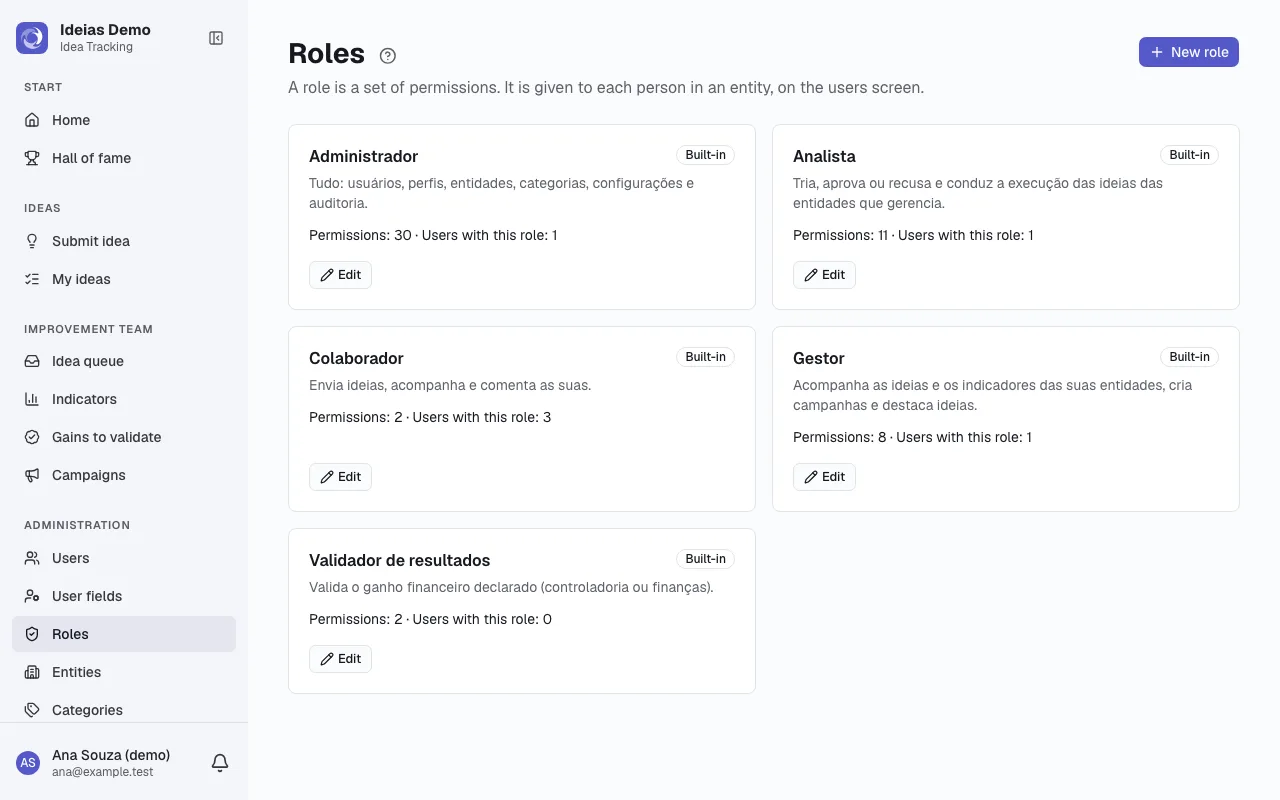
A role is a set of permissions. Five come out of the box: Employee, Analyst, Manager, Results validator and Administrator. In Roles, you edit these and create others. The full matrix is in Roles and permissions.
Every action is checked on the server: hiding a button is never the only protection.
What is scope?
It's where the role applies. When you give a role, under Roles per entity, you choose the Entity and tick Include sub-entities if the role also applies below it. A person can have different roles in different places, such as employee in department A and analyst at site B. And whoever submits an idea always sees it, whatever the scope.
Practice: find out who sees an idea
- CarlaEmployee in ProductionSees itis the author: whoever submits always sees their own idea
- DaviEmployee in ProductionDoes not see itan employee only sees their own ideas and the ones they support
- EvaEmployee in Cold roomsSees itis a co-author (supported the idea)
- BrunoAnalyst in Site Aincluding sub-entitiesSees ittheir role includes seeing ideas in this entity
- GilManager in Site Aincluding sub-entitiesDoes not see itthe role does not apply to the idea’s entity
- BiaAnalyst in Site Bincluding sub-entitiesDoes not see itthe role does not apply to the idea’s entity
Simulation with made-up data: nothing here changes ITS.
How do I remove someone from ITS?
- Disable: the person is signed out right away and can't sign in again, but stays linked to the ideas they submitted. You can enable them again later.
- Anonymize: only for disabled accounts. It replaces the name and email with neutral values, deletes the photo and can't be undone. The ideas' history stays, and the person shows up as "Former employee".
What if the person forgets their password?
With email turned on, they can use I forgot my password on the sign-in screen themselves. Without email, use Generate new password link on the user's page.